Getting started
Getting started with Foilbench: this tour takes about five minutes through the pump-foil simulation. Open the live simulation in parallel.
Layout
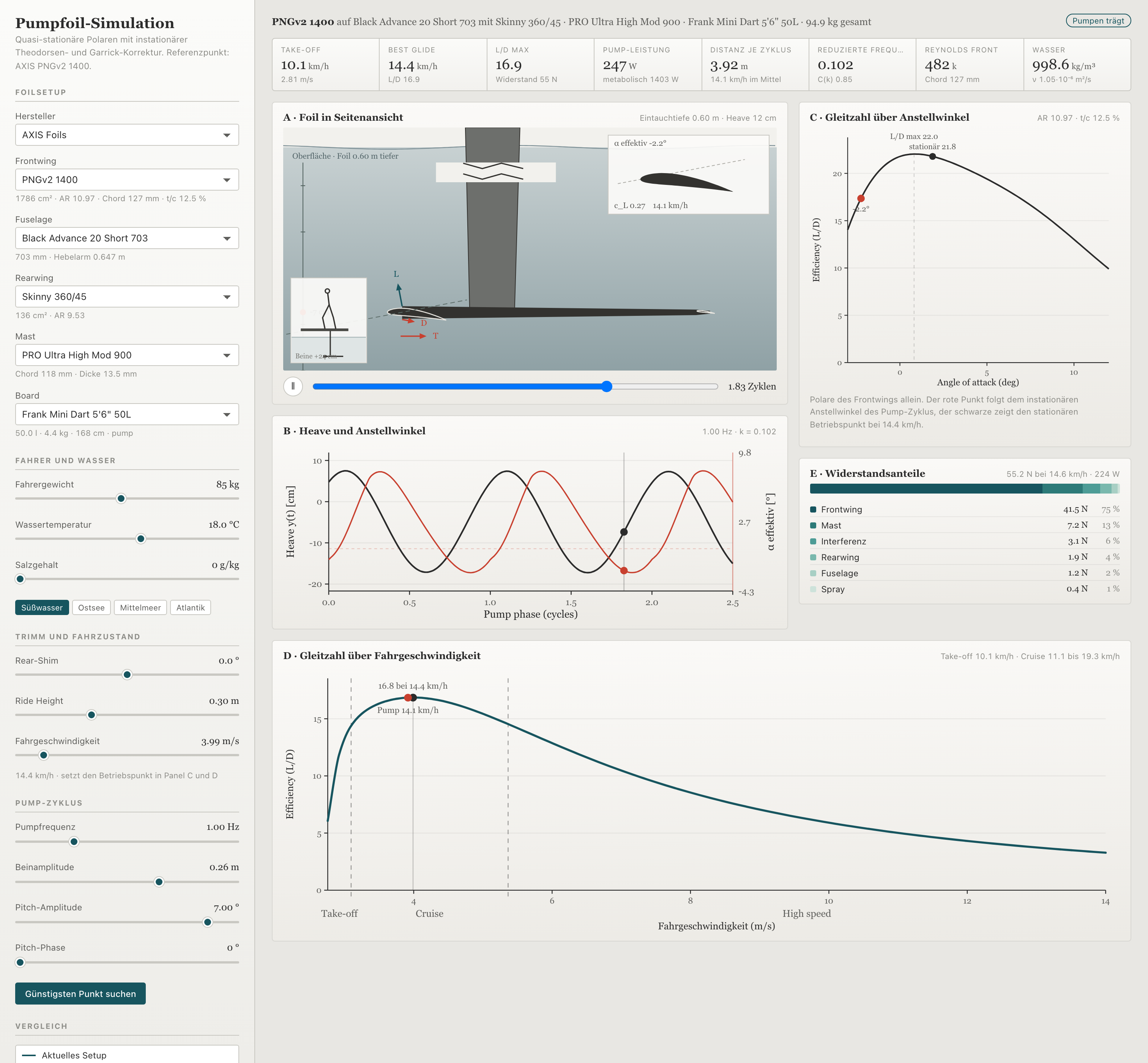
| Area | Content |
|---|---|
| Left | Control column: setup, rider, water, pump parameters |
| Top | Eight metric tiles (take-off, best glide, Vmax, …) |
| Right | Panels A–E: animation, charts, drag breakdown |
Collapse the sidebar for more chart space.
Load the reference setup
On first visit the default setup is already loaded:
- Front wing: AXIS PNGv2 1400
- Fuselage / rear wing / mast: matching AXIS parts
- Board: selectable from the pumpfoil boards in the catalog (wing / downwind / allround boards stay in the catalog, not in the picker)
- Rider: 100 kg (adjustable)
All metrics and charts update automatically when you move a slider.
Change language
Top right in the app: Deutsch, English, Français, Italiano. InfoTips (ⓘ) at each control explain settings in the chosen language.
This guide is available in German and English (language menu top right on this site).
Read one panel — panel D
Panel D · Lift-to-drag vs speed shows how efficiently the whole rig flies at different speeds:
- Take-off zone — below this the foil does not fly
- Cruise zone — typical pump and glide range
- High speed — mast and fuselage drag dominates; Vmax marks the useful steady end (still trimmable, L/D ≥ 40 % of peak)
The analysis slider (left, trim / ride group) sets the marker on the curve. Default is best glide — or Vmax when goal Speed is selected (Advanced/Pro).
Goal Efficiency | Speed
From skill Advanced, the control column shows Efficiency and Speed:
- Efficiency — analysis at best glide (status quo)
- Speed — analysis at Vmax; trade-off focus jumps to High speed
That places the operating point in the high-speed zone without hunting the slider. Once you move the slider yourself, your choice sticks.
→ Panels A–E in detail · Metrics · Vmax
Start a comparison
- Click Remember current setup (left column, compare)
- Change front wing or fuselage
- Panel D shows the new curve solid, the saved setup dashed
Below panel D, What changes? summarizes the main trade-offs (against a saved compare setup or the PNGv2 1400 reference).
Open pump coach
Click Pump coach top right or open /coach for score, deviations and tips.
Save setups in quiver
My quiver (sidebar, above compare) stores named setups for quick loading — separate from the curve overlay in panel D.
Help in the app
- ⓘ InfoTips — short explanation at each control
- ? links — next to panel titles, lead into this guide
- Guide — link in the header and footer
- What's new? — changelog with recent updates